The first completed task is the moment Todoist stops being theoretical. Not when you read about it, not when your champion demoed it, but when you create a task, give it a date, and tick it off.
You'll also discover why so many champions love that little chime of completion. Call it dopamine, call it satisfaction, call it whatever you like… Once you've heard it, you'll understand. (I warned you)
Let's go!
Type it the way you'd say it
Tap the + button (top left, or inside any project) and a task field opens. Type the task the way you'd say it out loud:
Kleiner Tipp
"Review the Q3 brief tomorrow at 3pm p1"
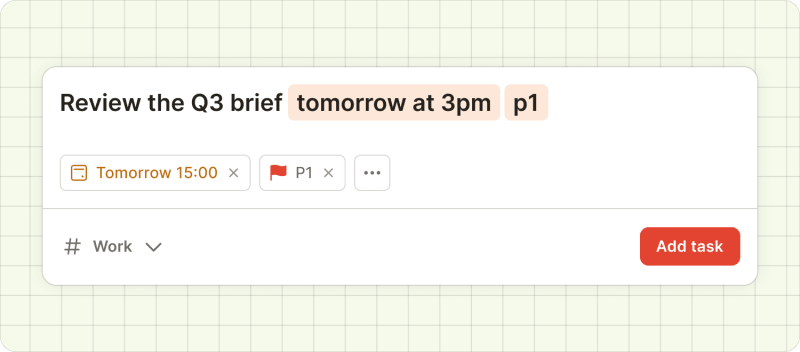
Todoist reads it and pulls out the pieces: "tomorrow at 3pm" becomes the due date and time, and "p1" becomes the priority (red flag, top urgency). You can also assign someone while creating a task by pressing the + symbol, typing their name, and selecting them from the dropdown.
One thing worth knowing early: a task in Todoist is assigned to one person, not several. That's designed deliberately – it means there's always one clear owner, and no task slips through the cracks. If a job really needs more than one person, split it into sub-tasks and assign those, or duplicate the task for each person.
Kleiner Tipp
If you’d prefer to just use voice (perfect for in-between meetings or when you’re running around and the big idea hits), you can also use Ramble. Ramble is a voice-to-tasks feature in Todoist that lets you quickly add tasks using your voice. Just speak naturally. Ramble listens, transcribes, and captures actionable tasks in real-time.
Complete the task, and watch the loop close
Find a task that's assigned to you – in your Today view, or inside a team project – and click the circle next to it. The line ticks off, the count drops by one, and the task is done.
That's the whole loop: a task lands in Today, you complete it, it falls off the list. Multiply that across a week, and the relief is real. You're not the one remembering everything anymore. Todoist is.
There's another kind of relief, too. One new team member, Lola, found she was finally adding the small tasks she'd always just absorbed silently – the work that never made it onto a list, so nobody knew she was carrying it. Now it's visible, and her manager can actually see what's on her plate.
Leave a comment, not a chat message
Click into any task and find the comment field. This is where the context lives, and it's worth getting into the habit early. If you're blocked, comment on the task and tag the person who can unblock you. For a question, comment on the task and add a screenshot, or if something has changed – like a deadline, or you need to input in your work’s direction – comment on the task.
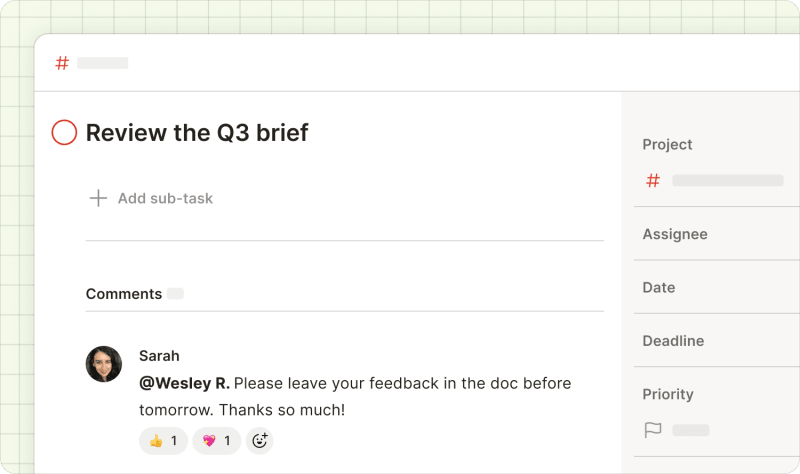
The reason is practical: the task and its comments travel together. Three weeks from now, when someone asks "what was the deal with that brief?", the answer is one click away rather than a scramble through scattered chat threads, docs and old emails.
That's your first work done, and it's the part that makes everything after it feel normal.
In lesson 4, you’ll learn how to build the habits that make this new way of working stick.