Huomautus
If your team has started using Todoist and you've just been added in, this course is for you. (If you're the one who set it up, you'll want to start with the Set Up Your Team Workspace course instead.) This is a short, friendly walk around your new workspace, so that in a few lessons from now, it feels like home.
Someone on your team picked Todoist, and now you're here too. If you're looking at an unfamiliar app and wondering how much of your week this is going to eat, that's a completely fair (and normal) thing to wonder.
A new tool usually means more work, at least at first, and we know that you've got enough of that on your plate already.
The reassuring part is that Todoist asks for very little. It’s built to serve what you need.
This lesson walks you through what's actually going on and what it means for you, and it takes about five minutes. By the end, you'll know exactly what to do next, and it'll all feel a lot less overwhelming.
1. Why your team moved to Todoist
Most teams make this move for the same underlying reason: the work had spread out. Tasks end up scattered across chat threads, email, sticky notes, and a few different docs, until someone asks "did we ever finish that?" or “what happened there?” and nobody can quite say. Todoist gives the work one home, so the work itself lives somewhere – not just the conversation about it.
But your team has its own specific version of that reason, and it's worth knowing. The Champion who set this up – the colleague who runs Todoist for your team and may show up in the app as the "Admin" – had a particular problem in mind. If you're not sure what it was, ask them. It's a good first conversation to have, and it'll make everything that follows make so much more sense.
2. What you’re walking into
Your Champion has been setting up a shared space for the team: projects for the work you do together, with people added to the ones that are theirs.
Depending on when you're reading this, you might find one of two things when you log in. If the workspace already has projects in it with tasks and names attached, your Champion has done the groundwork, and you can step straight in. If it looks fairly empty, that's fine too – it means the team is building it as you go, and you've just arrived a little early.
3. Two zones, kept separate
This is the part most people want to know first, so let’s start there.
Your workspace has two kinds of space. Team projects are shared with the people in them – tasks, due dates, and comments, all visible to that group. My Projects is yours alone: personal lists, the dentist appointment, the side project you're not ready to talk about. Nobody on your team can see what's in there.
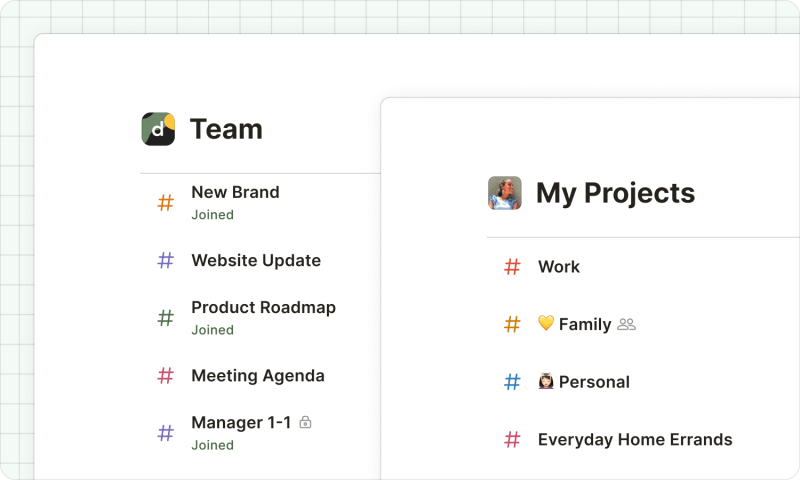
One new team member put the worry bluntly: "I logged in and immediately wondered if my boss could see my therapy reminder." It's a reasonable thing to check, and the answer is no. Anything in My Projects is invisible to your team. It's truly yours: the one corner of the workspace that's nobody's business but your own.
4. What you actually have to do
Less than what you're probably bracing for. Show up in the workspace, complete the tasks that are assigned to you, add tasks based on your work, and leave a comment when something's blocked or unclear. That's the whole job, and you don't need to become a Todoist expert to make the most of the system.
So the only thing to do right now is log in and have a look around. Lesson 2 will be right there when you do, to walk you through what you're seeing.