If Todoist isn't the right tool for what you want to achieve, and you don't want to use it again in the future, you may choose to delete your account. Doing so will delete all of your Todoist data, and you will no longer be able to collaborate in shared projects or teams.
Warning
Export your data
If you want a copy of your data for safekeeping, you have choices depending on your needs:
- For a basic copy of your project data, export each of your projects as a CSV file. This will include all active tasks and specific attributes, like labels, dates, priorities, and comments.
- If you don't need all task attributes, use the Export to Google Sheets extension. It excludes deadlines, comments, attachments, and reminders, but it allows you to include your project's completed tasks.
- If you’re on a paid plan, download the latest backup of all your active projects and tasks. Completed tasks and archived projects aren't included.
Leave or delete your team workspace
If you attempt to delete your Todoist account while you're a member of a team workspace, you'll see a prompt to either leave or delete it. A team workspace needs at least one admin, so you'll be able to do one or the other depending on how it's set up:
You share the team workspace
If you share the team workspace with others, check if another member is an admin:
- Open the Todoist web or desktop app.
- Click the team workspace name in the sidebar.
- Click People at the top-right. You'll see a list of all the people in the team workspace.
If you're the only admin, change someone else's role to an admin. Then, leave the team workspace.
You're the sole admin of the team workspace
If you're the sole admin of the workspace, and you've never invited anyone else, delete the team workspace. This permanently removes all team data, including projects, tasks, comments, and files.
Note
Once you've left or deleted the team workspace, you can delete your account.
Delete your account
Once you've removed yourself from any team workspaces, and have stored your data in a safe place, it's time to delete your Todoist account:
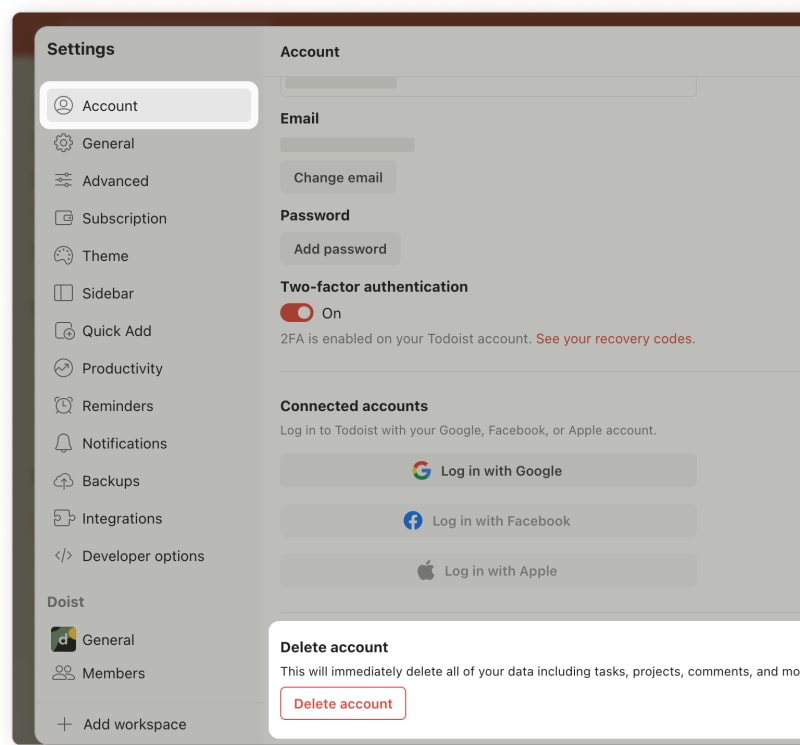
- Log in to Todoist at https://todoist.com. If you're having trouble logging in to your account, reset your account password.
- Click your avatar at the top-left.
- Select Settings.
- Click Delete account.
- Enter your password.
- Click Delete account again to confirm. If you've set up two-factor authentication for your account, enter your authentication code to complete the process.
After deleting your Todoist account, you'll be redirected to the login page.
- Tap on Browse in the bottom-right.
- Tap the gear icon in the top-right.
- Tap Account.
- Tap Delete Account.
- Tap Continue.
- Enter your password.
- Tap Delete to confirm. If you've set up two-factor authentication for your account, enter your authentication code to complete the process.
After deleting your Todoist account, you'll be redirected to the login page.
- Tap on Browse at the bottom-right.
- Tap the gear icon at the top-right.
- Select Account.
- Tap Delete Account.
- Enter your password.
- Tap Delete to confirm. If you've set up two-factor authentication for your account, enter your authentication code to complete the process.
After deleting your Todoist account, you'll be redirected to the login page.
Note
Add a password if you use a Google or Apple account
If you logged in using your Google or Apple Account, you'll need to add a password. After setting a new account password, click Delete account.
If the Add password option fails, use the Forgot password page to add the password to your account:
- Open the password reset page.
- Enter your account email address.
- Click Reset my password.
- Open the reset email in your inbox.
- Choose a new password that you haven’t used anywhere else.
- Log in to Todoist with your new password.
- Open your Todoist account settings.
- Click Delete account.
Request account deletion if you can’t log in
Every step above starts with logging in to your account. If you can’t log in, or you no longer have access to your account email address, get in touch with us to request account deletion, and tell us which of these applies:
- You’ve lost access to the email address on the account and can’t receive the password reset email.
- Someone else used your email address to create a Todoist account that you didn’t sign up for.
- You see an error when adding a password, or when resetting your account password fails.
We’ll take care of it.
Reset a breached password before you delete your account
When you enter your password to confirm the deletion, Todoist checks it against known data breaches. If it appears in a breach, you won't be able to delete the account. Instead, you’ll see a message that your password may have been exposed in a data breach, and that you need to reset it so we can confirm it’s really you.
The reset goes through the email address on your account, which is how we confirm you’re the owner. To continue with the deletion:
- Select the reset password option in the message, or open the password reset page.
- Open the reset email in your inbox.
- Choose a new password that you haven’t used anywhere else.
- Log in to Todoist with your new password.
- Follow the steps above to delete your account.
Note
Cancel any paid subscriptions
If you've purchased a paid plan through direct billing, it will cancel automatically after deleting the Todoist account.
If you paid for Todoist through an in-app purchase with Apple or Google, it won't cancel automatically and you may be charged for the renewal. Learn how to cancel the subscription in the App Store or Google Play store.

Evert · Head of Customer Experience
Request to restore your subscription for your new Todoist account
If you’ve deleted your Todoist account but didn’t cancel your paid subscription, the subscription doesn’t carry over to a new account if you decide to sign up again. Get in touch with us to request to restore your subscription.
If you paid through the App Store, here’s what to know:
- Find your order ID in your App Store account.
- Get in touch with us with your new account email and your order ID, so we can verify and transfer the subscription manually.
- Don’t use Restore Purchases, as it won’t link the subscription to your new account on its own.
Once it’s transferred, it renews normally on your new account going forward.
If you paid through Google Play, the subscription can’t be transferred to your new account. We can apply your plan to your new account manually instead. Here’s what to do:
- Find the receipt in your Google Play Store account.
- Send us the receipt and confirm your new account email when you get in touch. We’ll apply your plan to your new account manually.
If you're still logged in to your old Todoist account, whether that's on your computer or smartphone:
- Open Todoist on that device.
- Click or tap your avatar.
- Select Settings> Account.
- Take a screenshot of your account settings.
- Open the email account associated with your Todoist account.
- Search your email Inbox for emails from Todoist with the subject line, "Your payment receipt for".
- Attach the screenshots of your account settings and the Todoist email to your message.
Remove a Todoist calendar feed after deleting your account
If you previously subscribed to a Todoist calendar feed, deleting your account won’t remove it from your calendar app. You’ll need to remove the calendar from your calendar app separately.
To remove it from Apple Calendar on iPhone or iPad:
- Open the Settings app on your iPhone or iPad.
- Tap Calendar.
- Tap Accounts.
- Tap the Todoist entry.
- Tap Delete Account.
For Google Calendar or Outlook, follow the steps in Remove the Todoist calendar from your calendar app.
Get in touch
If you're having trouble deleting your Todoist account, get in touch with us and we'll sort the issue out.