Set a location reminder for Todoist tasks when arriving or leaving at a selected place. Todoist can send a push notification about completing your 30-minute workout when you arrive at the gym, or to grab an umbrella when you’re leaving home.
Check the Location Services settings
Before adding a location reminder, check the Location Services settings of your mobile device, so it receives location-based alerts.
- Open the Settings app of your Apple device.
- Tap Privacy & Security.
- Tap Location Services.
- Scroll down and tap System Services.
- Check that Alerts & Shortcuts Automations is turned on for your device.
- Tap back and select Todoist.
- Allow location access while using the app.
- Toggle Precise Location on.
If you don't see Todoist in the list of apps using location services, add a location reminder to a task to trigger the prompt to enable location services.
- Open the Settings app of your Android device.
- Tap Location.
- Toggle the Use location option on.
- Tap App location permissions.
- Scroll down and select Todoist.
- Select Allow all the time or Allow only while using the app.
Note
Check the Notification settings
Then, check the Notifications settings of your mobile device, so it receives push notifications for reminders.
- Open the Settings app of your Apple device.
- Select Notifications.
- Scroll down and select Todoist.
- Toggle Allow Notifications and Time-Sensitive Notifications on. These settings ensure you receive your reminders without delay.
- Open the Settings app of your Android device.
- Select Notifications.
- Tap App notifications.
- Select Todoist.
- Toggle All Todoist notifications on.
Note
Add a location reminder
Let's start by adding a location reminder to a task:
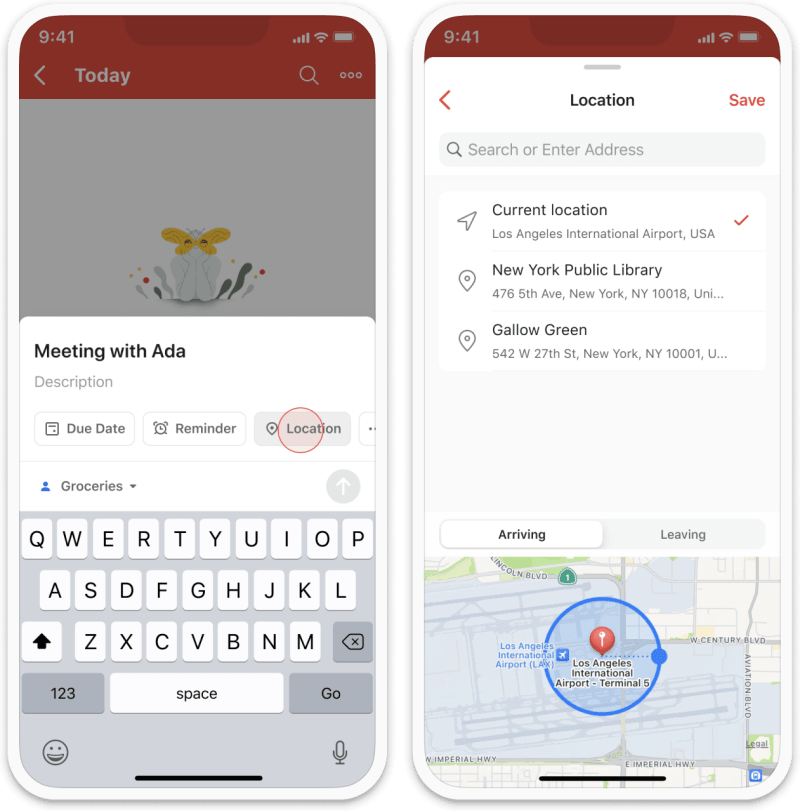
- Tap the task to open the task view.
- Tap the Location chip. If the chip isn't visible, learn how to customize Quick Add.
- Enter the address of the location. If you're adding a location reminder for the first time, you'll be prompted to give Todoist location access.
- Select the most accurate location from the search results.
- Select to receive the reminder upon arrival or departure.
- Tap the blue circle on the map. Then, drag it outward or inward to change the radius of the location.
- Tap Save to add the reminder.
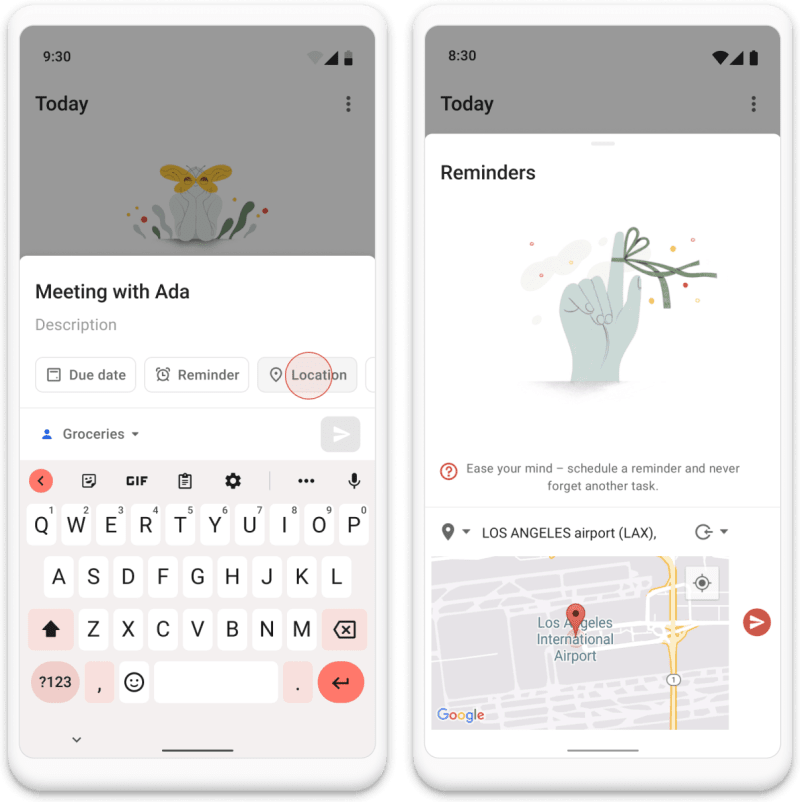
- Tap the task to open the task view.
- Tap the Location chip. If the chip isn't visible, learn how to customize Quick Add.
- Enter the address of the location. If you're adding a location reminder for the first time, you'll be prompted to give Todoist location access.
- Select the most accurate location from the search results.
- Select to receive the reminder upon arrival or departure.
- Tap the submit icon next to the map.
You'll only receive push notifications for location reminders on your mobile device. This is because Todoist relies on your mobile device's location services to send the push notification when you arrive at the specified location.
You can, however, add these reminders while using the Todoist web app or desktop apps, and then manage them on either Todoist for iOS or Android.
Note
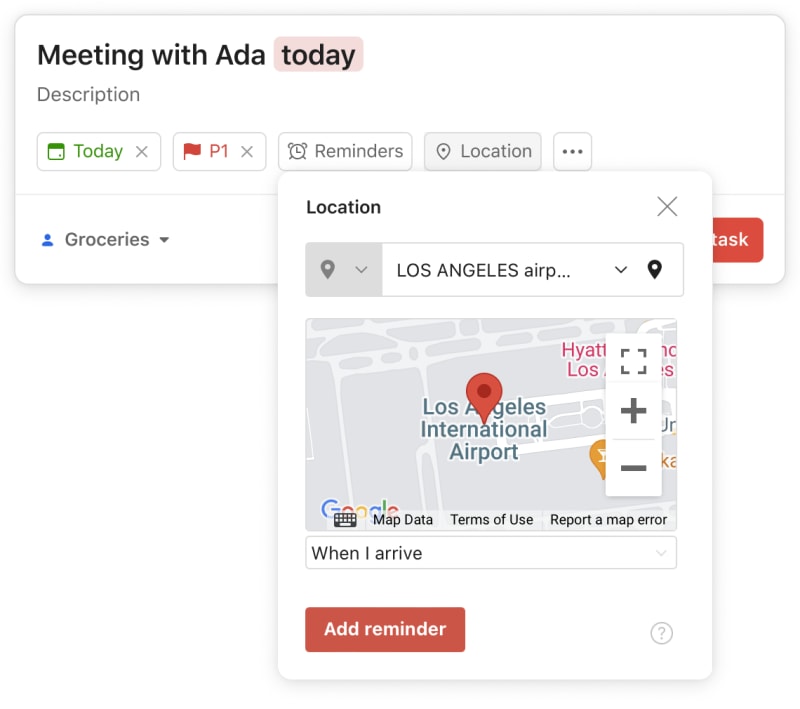
- Click Add task and enter the task details.
- Click the red Add task button to create the task.
- Click the task to open its task view.
- Click Location on the right-hand side.
- Type the address of the location. If you see it, select it from the drop-down list.
- Select if you’d like to receive the reminder upon arrival or departure.
- Click the red Add location button.
Clear location suggestions
To save time, Todoist provides location suggestions based on your past location reminders. If the list starts to get cluttered, clear these location suggestions:
- Open Todoist for iOS.
- Tap Browse in the navigation bar.
- Tap the gear icon in the top-right.
- Tap Reminders.
- Tap Clear Saved Locations.
- Open Todoist for Android.
- Tap Browse at the bottom-right.
- Tap the gear icon at the top-right.
- Tap Reminders.
- Tap Clear locations.
Get in touch
If you're having trouble with location reminders in Todoist for iOS or Android, get in touch with us.