Your Todoist data export is a ZIP file containing JSON files with your tasks, comments, projects, and account details. You can open them in a web browser, a text editor, or Microsoft Excel. Below you’ll find how to request your export and how to open each file.
Note
Request your data export
There’s no way to generate a data export from inside Todoist. To get one, contact the Todoist support team and ask for a copy of your personal data.
When your export is ready, you’ll get an email with the subject “Your Todoist data is ready to download”. The download link works for 14 days.
Download and unzip your data
- Open the email with the subject “Your Todoist data is ready to download.”
- Click Download your data. The link is available for 14 days.
- Save the ZIP file somewhere safe, like your computer or a cloud storage folder.
- Unzip the file.
Keep the original ZIP file even after you unzip it. That way, you’ll always have a complete copy of your data.
Files in your data export
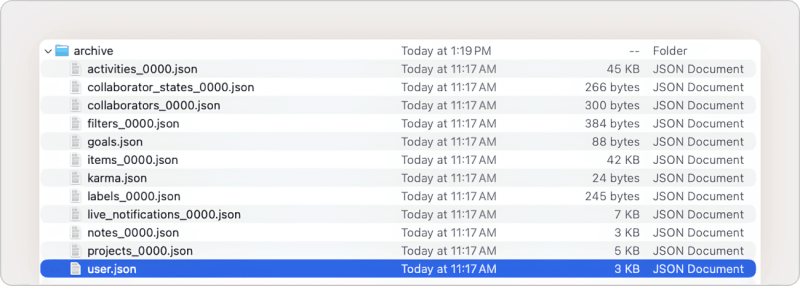
The unzipped folder contains an archive folder with a separate file for each type of data. Depending on what’s in your account, you’ll see files like these:
- items: your tasks
- notes and project_notes: your comments on tasks and projects
- projects: your projects
- activities: your activity history
- labels, filters, reminders, and locations: your labels, filters, reminders, and the places used in location reminders
- collaborators and collaborator_states: the people you share projects with and their access
- live_notifications: your notifications
- karma: your Karma history
- user and authorizations: your account details and connected apps
Larger lists are split into numbered files of up to 10,000 records each, for example items_0000.json, items_0001.json, and so on.
Open a file in Firefox
Firefox shows JSON files in a readable, searchable layout.
- Open Firefox.
- Drag a JSON file from the archive folder into the Firefox window.
Open a file in a text editor
Any text editor, like Notepad, TextEdit, or VS Code, opens JSON files as plain text. This works well if you only need to search for something specific.
- Open your text editor.
- Open a JSON file from the archive folder.
Open a file in Microsoft Excel
Excel can turn a JSON file into a spreadsheet with a column for each field.
- Open a blank workbook in Excel.
- Click the Data tab.
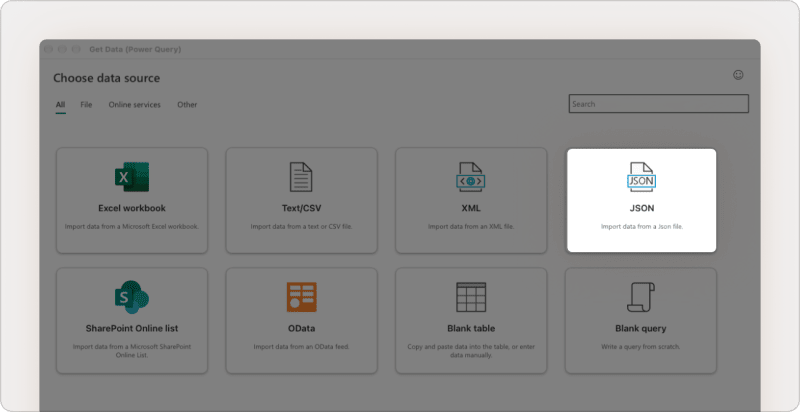
- Click Get Data (Power Query).
- Select JSON.
- Select the JSON file you want to open.
- Open a blank workbook in Excel.
- Click the Data tab.
- Click Get Data.
- Select From File > From JSON.
- Select the JSON file you want to open.
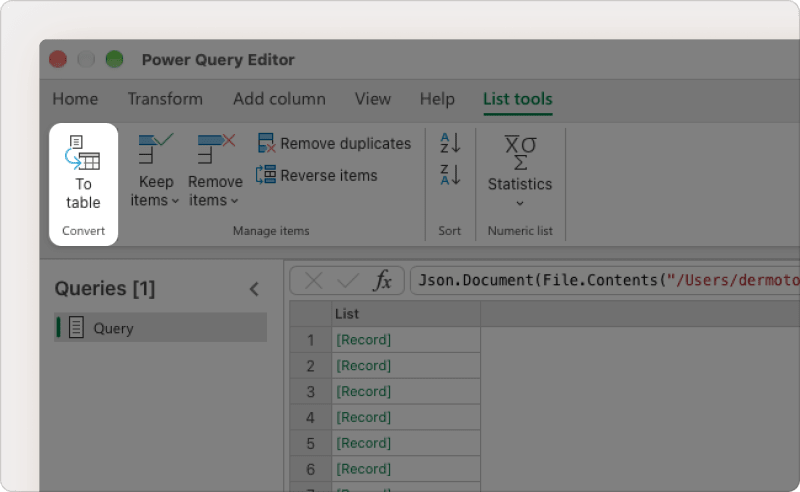
The Power Query editor opens with your data in a list. Turn it into a table, then expand the columns you want to see.
Convert the list to a table
- Click To table.
- Click OK in the Convert to table window to keep the default settings.
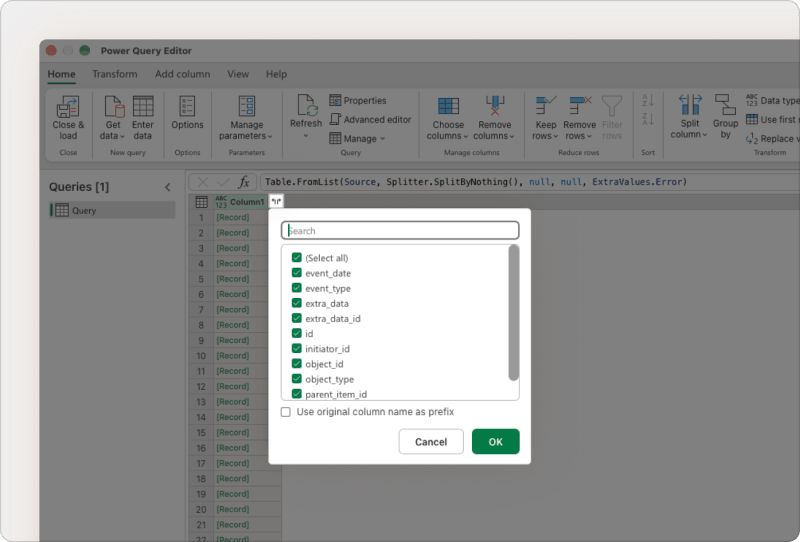
Expand the columns
- Click the expand icon in the Column1 header.
- Select the fields you want to see as columns.
- Click OK.
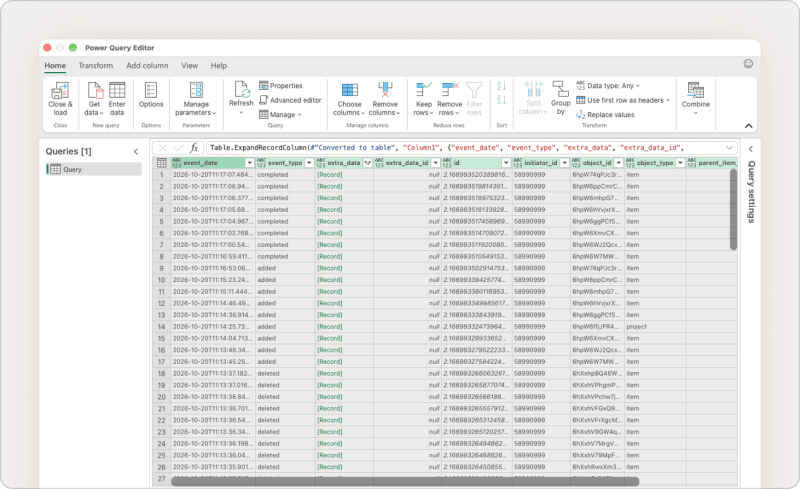
Expand nested records
- Click the expand icon on any column that still shows “[Record]”, such as extra_data.
- Select the fields you want from that column.
- Click Close & load.
Quick tip
Get in touch
If you’re having trouble opening the files in your Todoist data export, get in touch with us.