Not everything needs to be red.
It’s Tuesday, 9:40 AM, and your calendar looks like it’s on fire.
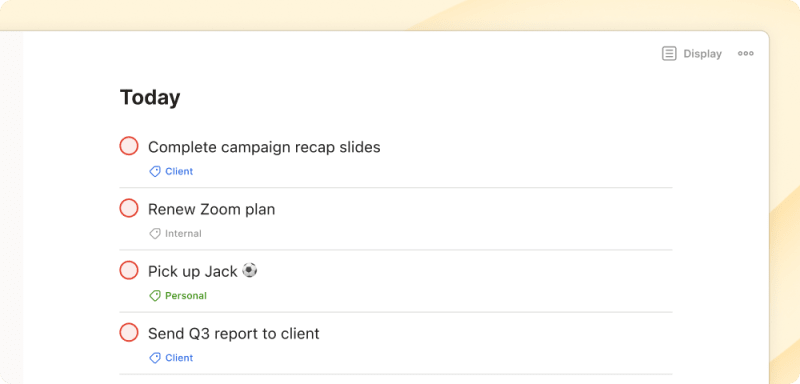
The campaign recap deck due at noon is red.
… So is the reminder to renew the Zoom plan.
… So is picking up your kid from soccer practice at 5, flagged p1 (because if a software renewal reminder gets to be red, your offspring gets to be redder).
It’s all shouting at the same volume, but not everything on your plate deserves the same glance.
Remember, you decide what gets your attention.
Color code your calendar
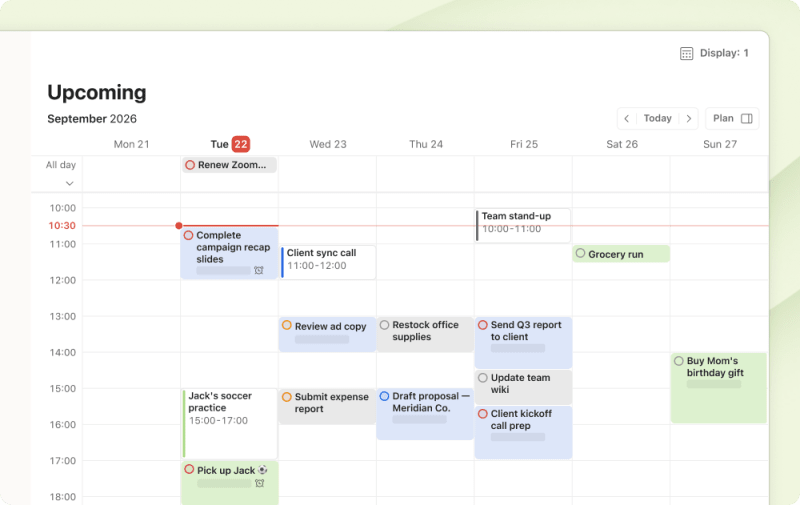
Organize tasks by project or label color on your calendar. No more squinting at a wall of text, trying to tell the client work from that Zoom renewal (scheduled two months early, because Janet likes to be prepared).
Set client deliverables to blue, internal admin to gray, personal stuff to … whatever you want. You get the idea.
Try color-coding your projects →
Note
Create just enough runway to plan ahead
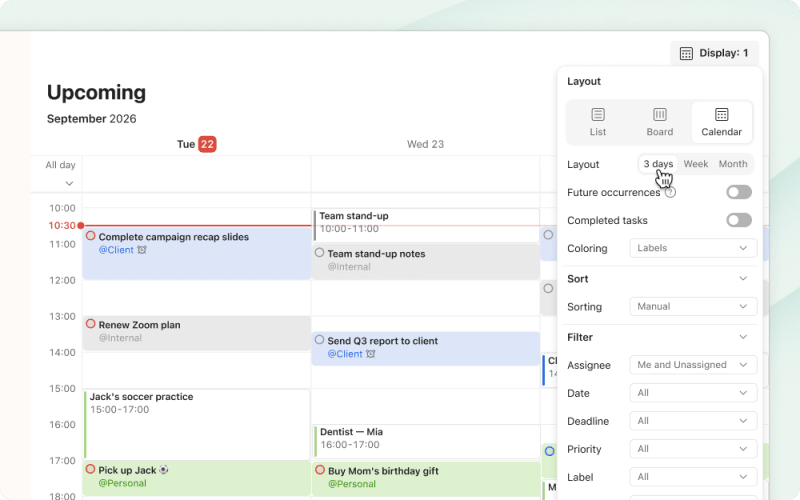
Once your week feels back in order, the next question is when to get stuff done.
With the 3-day calendar layout now also available on web and desktop, you can keep things simple: today on the left, rolling forward from there. Stay focused on giving yourself just enough visibility to plan the next couple of days without staring down the rest of the month. Small steps.
Let your board do the triage
Here’s a tip from one of our own CX teammates, Rikke: switch your Today view to board layout, then group by priority. “Bish bash bosh,” as Rikke put it – everything sorts itself into columns: truly urgent tasks on one side, the can-wait-until-Thursday on the other.

Flag the one thing that can’t wait
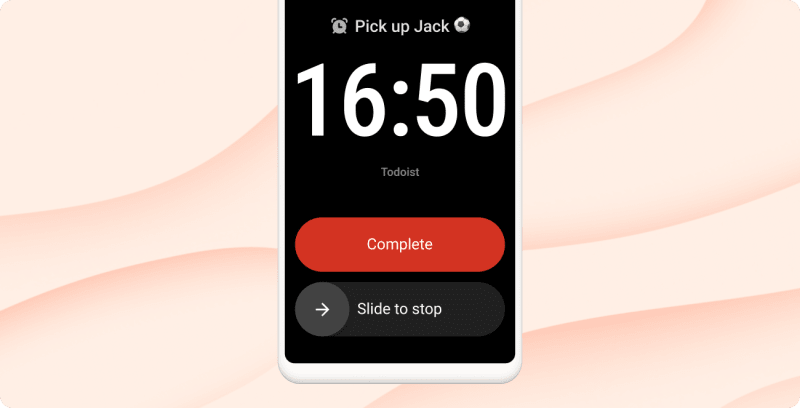
Sometimes things do deserve your immediate attention.
… like definitely picking up your kid on time from soccer practice.
Mark a reminder as urgent, and you’ll get a full-screen alarm on your mobile (Android or iOS) when the time comes around. It even cuts through Do Not Disturb and silent mode, so you’ll catch it no matter how quiet you’ve made everything else.
Make one thing impossible to miss →
How GO First uses Todoist’s MCP server to hone their focus
Grant has been using Todoist for basically everything, both personal and professional, for eight years. He runs GO First, an AI consultancy that builds AI setups for home builders.
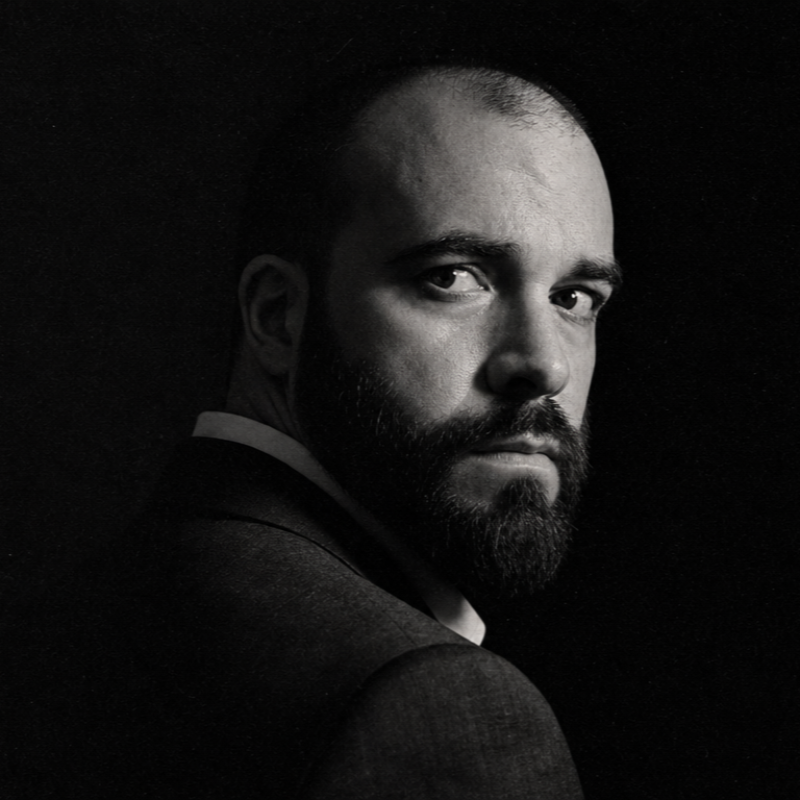
A lean team and a long client list mean a lot competing for his attention, every single day.
His fix: A scheduled Claude task pulls notes and action items from client calls tracked by his CRM, then automatically turns them into assigned and labeled Todoist tasks via Todoist’s MCP server. Every task goes straight into the right client project, so he and his team always know what needs attention today and what can wait.
Grant credits this workflow with helping his business achieve more than 35% revenue growth quarter-over-quarter while keeping churn at zero.
See how GO First runs on Todoist →

Watch how In-Gear Media keeps a crew in sync
Todoist customer In-Gear Media shares how they use Todoist to keep up with their videographers and photographers without chasing – even when half the crew’s out on location.