Add an urgent reminder with the Todoist iOS app

Add an urgent reminder with the Todoist iOS app


There are tasks you just can’t miss, like paying bills before they're due or picking up your kid at the exact time they're dismissed from school. In Todoist, add urgent reminders to any task, and on top of your other reminders. Urgent reminders display a full-screen alarm on your mobile device that cuts through both silent and Do Not Disturb modes, so you'll never miss what matters most.

警告

Urgent reminders are only available on Todoist for iOS 26 and later. You won’t see this option if you’re using Todoist on Android, web or desktop.

ヒント

Urgent reminders are available on all plans. On the Beginner plan, you can mark your one reminder as urgent. With Pro or Business, you can add multiple urgent reminders to a task, and use a shortcut: type the time between two exclamation marks in the task name, like Call Peter !13:00!.

Add an urgent reminder

The Urgent toggle is attached to the reminder, not to the task’s date. After you add a time-based reminder, you’ll find the Urgent toggle below the calendar. Tapping the task’s date alone won’t show it.
  1. Tap the Dynamic Add button at the bottom-right to add a new task. If you’re editing a task, tap it to open the task view.
  2. Tap the Reminder chip (clock icon).
  3. In the Date & Time section, tap Add to create a time-based reminder.
  4. Toggle Urgent on. A prompt will appear once asking you to enable urgent reminders.
  5. Tap Enable Urgent Reminders to confirm.
  6. Tap Allow when your Apple device prompts you to enable alarms and timers.
  7. Tap Save at the top-right. You’ll see the orange URGENT badge beside the reminder.
  8. Tap the checkmark icon at the top-right to confirm.

On any plan, add an urgent reminder to a task that already has a date and time:

  1. Tap the Reminder chip (clock icon).
  2. Select Add to add a Before Task reminder.
  3. Select how long before the task is due before Todoist sends a reminder.
  4. Toggle Urgent on. 
  5. Tap Save at the top-right.

To set a recurring urgent reminder, make sure the task has a due date and time, then:

  1. Tap At time of task.
  2. In the Date & Time section, tap Add.
  3. In the input field at the bottom, type a recurring date like “every Monday at 11 AM”.
  4. Tap the search icon to confirm.
  5. Toggle Urgent on.
  6. Tap Save at the top-right.

The urgent reminder is now set. When the time comes, you'll see a full-screen alarm even if your device is locked, in Silent mode, or in Focus mode.

When you create an urgent reminder on a device that supports it (currently iOS), other devices will get regular reminders.

Change the time of an urgent reminder

If you need to quickly change the time of an urgent reminder, tap the dismiss icon next to the reminder to remove it from the task. Then, add a new one with the updated time.

Urgent reminders only work with time-based reminders, not location reminders.

Respond to an urgent reminder

Perfect timing! That reminder’s given you enough time to wrap up and prepare for your next task. Here’s how to respond to the urgent reminder:

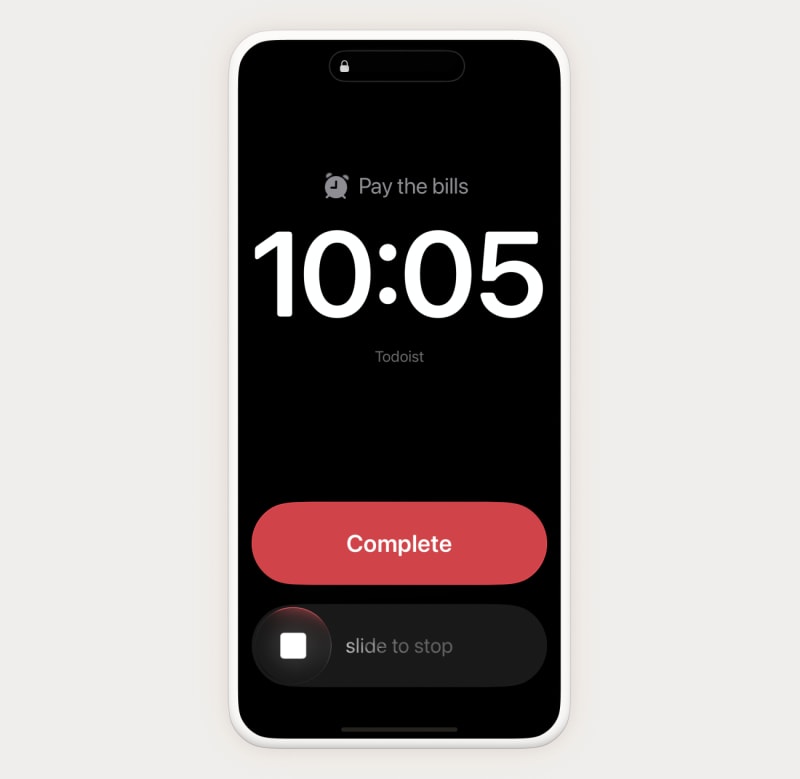
When an urgent reminder alarm goes off, it’ll appear on your device’s lock screen. You can either tap Complete or slide right to turn the alarm off.

iOS-urgent-reminders-help-center.png

Remove an urgent reminder

If you no longer need the urgent reminder, here's how to remove it from the task:

  1. Tap the task with an urgent reminder. This opens the task view.
  2. Tap the Reminder chip (clock icon).
  3. Tap the dismiss icon next to the urgent reminder to remove it.

Get in touch

If you're having trouble setting an urgent reminder, responding to it, or removing it from a task, get in touch with us.

お客様のプライバシーを尊重します

当社ではサイトとマーケティングの向上を目的にクッキーを使用します。ご希望の設定をお選びください。設定が保存されます。