You've done the basics, and by now Todoist has probably started to feel less like a new app and more like somewhere your work simply lives. Even so, there are usually a few questions still sitting at the back of your mind at this stage, the small ones you didn't want to interrupt anyone to ask. This lesson is for those.
You don't need to read it all now. The answers are short, and the page isn't going anywhere, so the best thing to do is bookmark it and come back whenever one of these questions actually comes up.
Here are the questions we hear most often from people right where you are now:
1. "How do I find the project my team is using?"
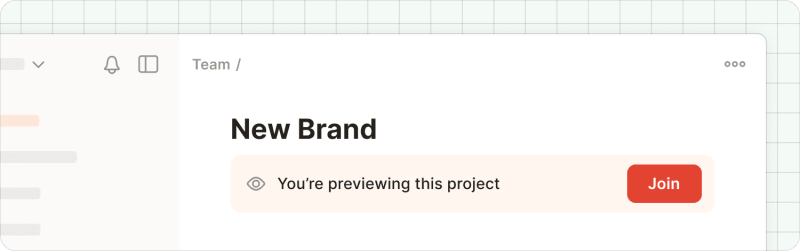
Click into your team workspace to browse the full overview of team projects. Find the one you'd like to join and click Join in the top-right corner. Once you've joined, you can add tasks, comment on existing ones, and see what your team has been working on.
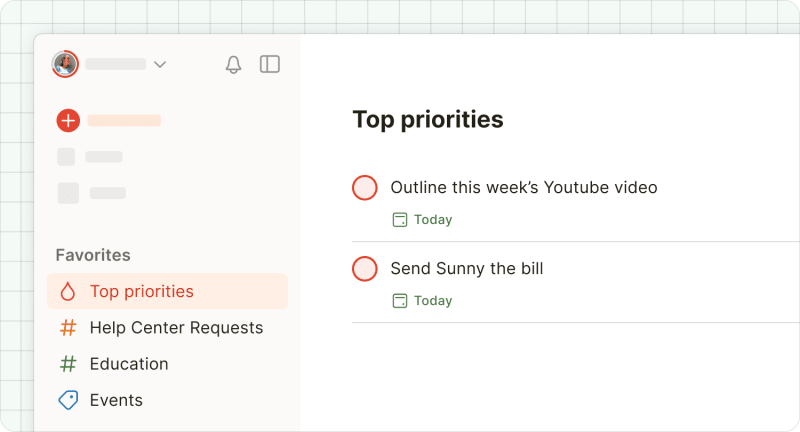
To get back to it quickly next time, add it to your Favorites in the sidebar, and it'll sync across all your devices.
2. "Who can see my tasks?"
Anyone in a shared project sees what's in it: tasks, due dates, and comments. And My Projects stays invisible to everyone but you.
3. "Can I use this on my phone?"
Yes. Todoist is on iOS, Android, web, and desktop. Same account, same data, all syncing in the background. The mobile app is good for adding things on the go and ticking them off between meetings.
4. "What if I get too many notifications?"
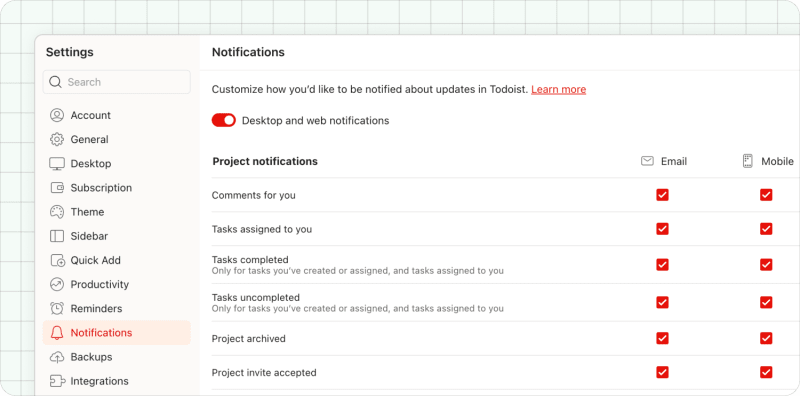
Turn them down, or off. As Lesson 4 covered: the morning-and-evening Today pass is the system, not the notifications. You can mute them entirely in settings, or keep just the ones that matter most to you.
5. "Being assigned a task feels weird. Is that normal?"
Completely normal, and some people feel it more than others. It's worth knowing this is common: a lot of people read an assigned task as slightly aggressive the first time it happens, as though they've been handed an order.
As a reframe, think about it like this: in Todoist, an assigned task isn't an order, it's just a marker. It says "this is your piece," not "do this right now." And if something assigned to you doesn't feel right, you can comment on the task, which is how an assignment turns into a conversation rather than an instruction.
6. "Who do I ask if something's wrong?"
If you don't understand how something is meant to work, ask your champion, since they built the workspace and they know the conventions your team has agreed on. If you need help getting deeper into a specific feature, or you think a feature isn't behaving as it should, check the Help Center, or even reach support directly from there.
7. "Where do I go to learn more?"
The Todoist glossary is a good place to start, with a short explanation of most of our features. It isn't required reading; more a library you dip into when you need it. And if you ever need more context, you’ll find everything you need in the Help Center.
That's the course done, and it's worth a moment to mark it.
Thank you for giving this shared system a real go, rather than letting it become another tab you never opened.
One last thing worth saying. As much as this is a tool for work, the benefits also lean towards the personal side. When the dentist appointment and the Q3 brief live in the same place, that's a little less for you to carry around in your head, and a little less mental juggling between the work version of you and the rest of your life. That's the part people tell us they love, but didn't expect.
From here, you're not learning Todoist anymore. You're living it.
Welcome to Todoist!