Teams - Shared filters, smarter insights & quick mobile access: Dec 16
Three updates to smooth out the end-of-year crunch for teams. Team filters let anyone create shared views, Project Insights got more focused and flexible, and your team workspace now lives in your mobile navigation bar for quick access.
Stay aligned with team filters
Getting visibility across your team’s work shouldn’t require digging through every project to piece it together.
With team filters, anyone can create shared views that surface exactly what your team needs to see: “all open customer requests,” “this week’s site visits,” or “what Sarah’s team is working on.”
Create a team filter, and it’s available to everyone. Update it, and the changes sync across the team.
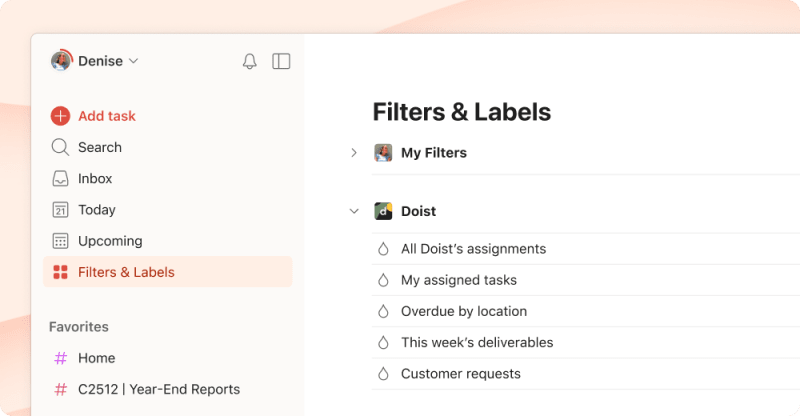
Team filters are available now, and we’re continuing to refine them based on what we hear from you. Learn more about team filters.
Consejo rápido
If filter syntax feels tricky, let Filter Assist write the query. Just describe what you want in plain language, like “this week’s overdue tasks in the Marketing project,” and it builds the filter for you. 💫
Better Project Insights for your team
Since launching Project Insights (Beta) in October, we’ve been tweaking the details based on your feedback. Here’s what’s changed:
Better summaries and manual refresh: The automatic health summaries now focus on what matters most and handle larger projects more effectively. Need an update right now? Click “Updated ... ago”, then close and reopen the panel to refresh your project health on demand.
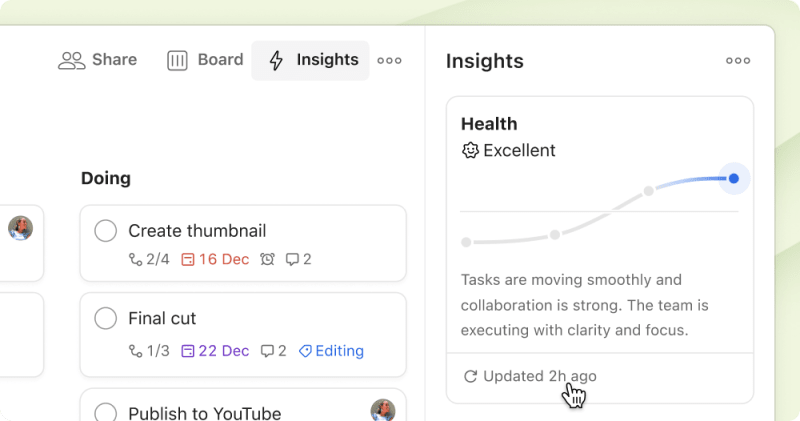
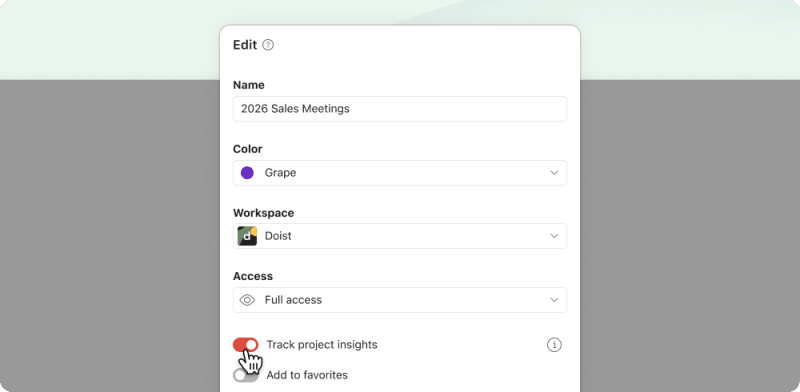
Control per project: Not every project needs progress tracking. Turn insights on or off in any team project’s settings.
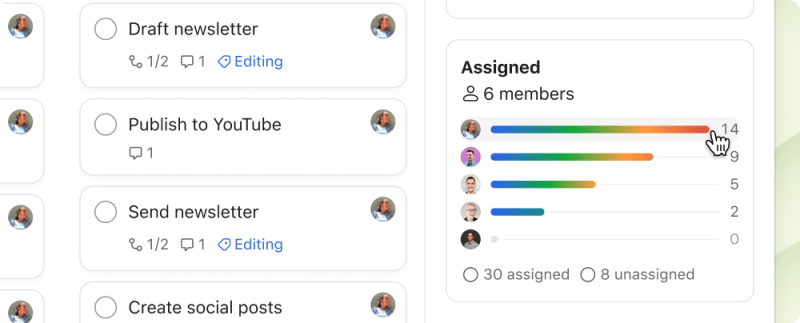
Filter by person: Select anyone’s name in the Assigned widget to view only their tasks in the project.
See all at-risk items: When more than 5 tasks are flagged, expand the At risk card to see the full list.
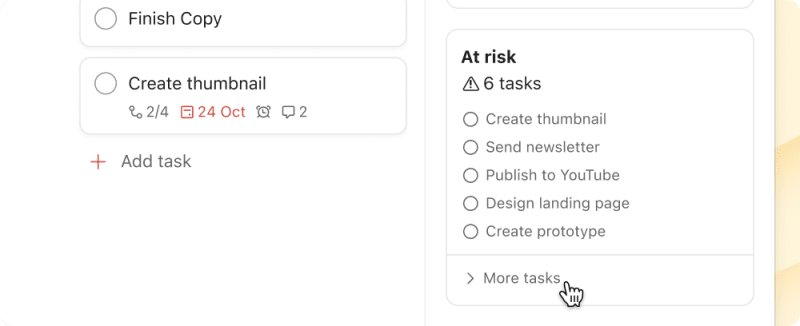
Using Project Insights? Let us know what else you’d like to see improved.
Your team, right in reach (on mobile)
On mobile, your team workspace is now just one tap away. Add it to your navigation bar for quick access. Then you can check who’s handling today’s deliveries, see if the install team finished the morning job, and make sure nothing’s falling through the cracks while you’re away from your desk.
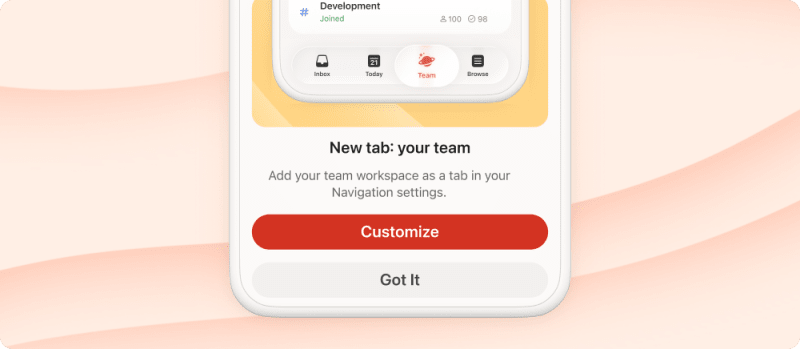
The next time you update Todoist, you’ll see a prompt to customize your navigation. Add your team for quick access, or set it up later in settings.
Capture tasks at the speed of thought - Ramble (Beta): Nov 19
Ever wish Todoist could just listen while you think out loud? Now it can.
Ramble lets you add tasks by speaking. It turns your words into structured tasks, complete with any details you mention, like projects, dates, deadlines, and priorities.
It feels like magic.
How it works
Your thoughts move faster than your fingers. With Ramble, you can add tasks four times faster than typing them. Here’s how:
- Click the waveform icon in Quick Add or the sidebar.
- Speak normally, describing what you need to do and when you need to do it.
- Edit, remove, or adjust the tasks as you speak. Say phrases like “Actually, I meant…” to edit a task, or “Remove that” to delete a suggested task. Ramble will update them as you go.
- Done rambling? End the session by saying “that’s all” or clicking Add tasks.
That’s it! The tasks are off your mind, in Todoist, and organized so you now know exactly what you need to do and when. 🧘♂️
Here’s Heather with a quick walkthrough:

Consejo rápido
What Ramble captures
Ramble understands natural speech in 38 languages and allows you to set a project, date, time, recurrence, duration, deadline, priority, labels, and description while you speak.
For more details on what’s possible with Ramble visit our Help Center.
Nota
When to use Ramble
Like any feature, Ramble isn’t for everything. But when it fits, it fits perfectly. Here are a few times when speaking beats typing:
- Between contexts, when everything hits at once. You’re wrapping up a work call and suddenly remember you need to email the team, pick up prescriptions, and schedule that budget meeting. Get it all out in one breath. 💆
- During your commute, when ideas flow. The train ride home is when you finally see how next week should unfold. Capture the entire plan before your stop.
- At your desk when life interrupts. Your partner texts with a list of errands while you’re mid-flow. Ramble them off, then dive back into focus mode without missing a beat.
- After meetings with scattered follow-ups. Your standup just ended, and you have a laundry list of client requests, updates for the team, and follow-ups to remember. Ramble captures it all before you’re back at your desk.
Give it a try
Ready for a quick brain dump? Pull up Ramble and just... talk. Get it out of your head. Ramble will handle the rest.
🆕 Teams - Custom views, team defaults & SOC 2 compliance: Oct 29
Over the past months, Rain and her team have been heads-down making Todoist work better for teams. From customizable views to default settings that save time to enterprise-grade security standards, here‘s what‘s new for team workspaces.






Customize your view without affecting anyone else
You can now customize how you see a project without affecting how your teammates see it. Switch to a board layout while your teammate stays in list view. Sort tasks by assignee while they sort by due date. No matter which combo someone chooses, your view will stay uniquely yours.
And when it makes sense to get everyone on the same page (like at the start of a new sprint), the “Save for everyone” option lets you set a standard view for the whole team.
Here’s a quick demo from Denise to show you how it works:
Skip straight to the work with new team default settings
If you’re managing projects across a growing team, you know the drill: create a new project, adjust the access settings, and add the usual collaborators. Rinse and repeat.
Not anymore, now that we’ve rolled out default project access and collaborators.
Think of it as teaching Todoist how your team likes to work, so every new project starts exactly where you need it to.
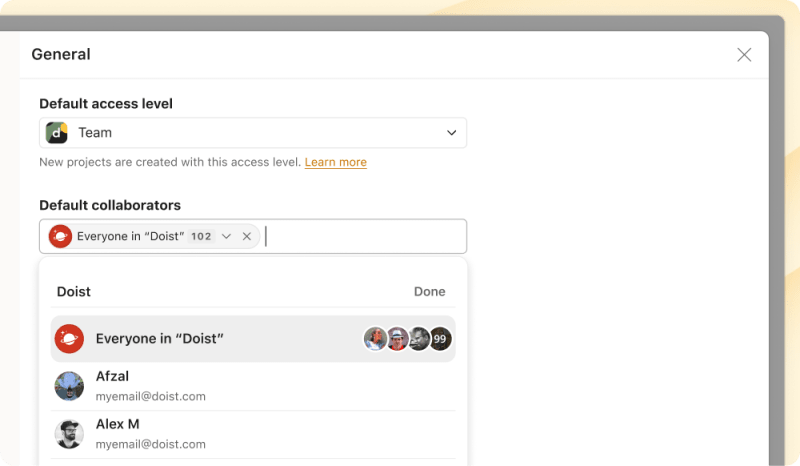
Default project access (team admins)
Choose whether new projects are discoverable by all team members or invite-only. Perfect for teams handling client work or confidential projects where access needs to stay controlled.
Default collaborators (team admins)
Automatically add specific team members or your entire team to newly created projects. No more forgetting to loop in Sarah from design or Mike from development.
Here’s where to find them:
- Click your team name in the Todoist sidebar.
- Select Settings in the top-right corner.
From there, you can manage all your team settings in one place.
Enterprise security without the enterprise complexity
Todoist is now SOC 2 Type II compliant. That means enterprise-grade data protection and security controls for teams who need them (without all the head-scratching complexity that usually comes with enterprise apps 😬).
Visit our Trust Center for our SOC 2 report, subprocessor list, and security documentation.
See team progress with Project Insights 📊: Oct 27
We have a confession: even here at Todoist, we love using Todoist for our individual work, but when it comes to tracking how our team projects are actually doing, we found ourselves in the same place you probably are: juggling spreadsheets, status docs, and gut feelings.
That’s why we’re building Project Insights.
Project Insights: now in beta for Business teams
Your team keeps working exactly as they do now in Todoist. Meanwhile, Project Insights interprets every completion, every assignment, every deadline to surface the project intelligence you’ve been missing.
No setup required. No new processes. No additional work for anyone.
Here’s Heather with a quick walkthrough:
Nota
What you’ll see (and why it matters)
Health – Automatic summaries that give you real context, not just red/yellow/green indicators. See things like “The project is moving, but inconsistently. 2 tasks are behind schedule, 1 has unclear ownership.”
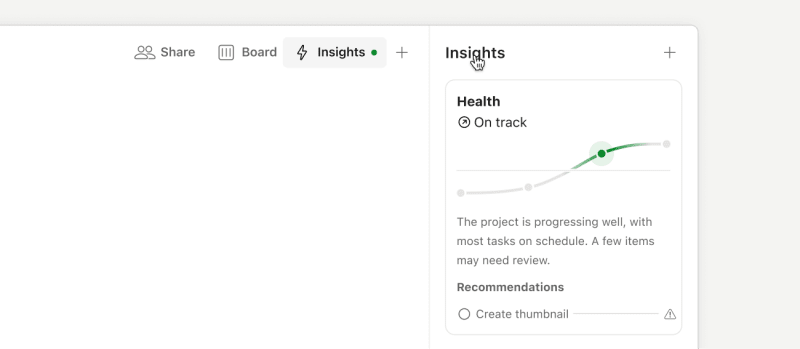
Progress – Shows completion percentage, completed task count, and active (open) tasks. A simple snapshot of where your project stands right now.

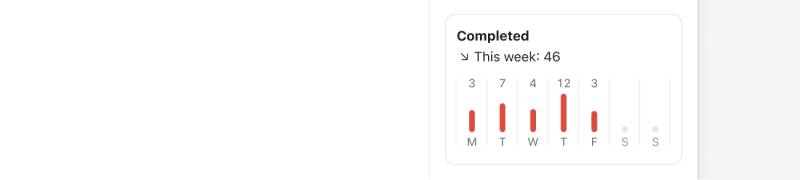
Completed – Compare this period’s task completions to the previous one (week-over-week or month-over-month). Quickly see if momentum is building or stalling, and spot patterns in your team’s work rhythm. Simple trend arrows show whether you’re accelerating, maintaining pace, or slowing down.
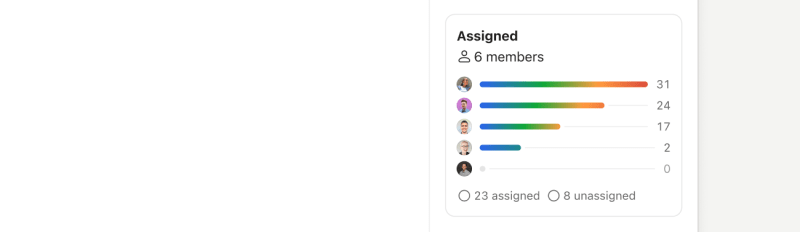
Assigned – View task distribution among team members, sorted from heaviest to lightest load. Spot imbalances before they become problems, and catch unassigned tasks that may have fallen through the cracks.
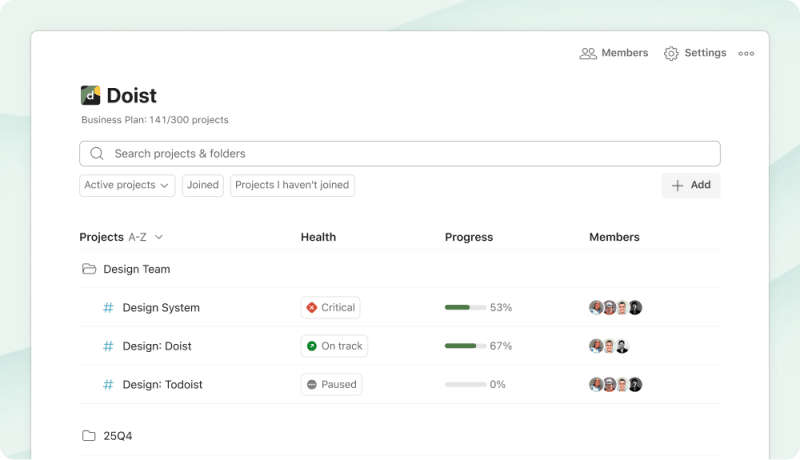
Workspace Overview – Health and progress indicators across all projects in the overview help you scan your team’s entire progress at a glance. While currently limited to projects you’ve joined, the full workspace-wide visibility is coming soon, allowing you to quickly identify which projects need attention and which are running smoothly.
Project oversight without the overhead
Traditional project management tools often require elaborate workflows, complex dashboards, and heavyweight processes. We’re building something different: intelligence that emerges from your team’s natural work patterns, not from added layers or extra effort.
Like a fitness tracker that surfaces health insights from your natural activity, Project Insights automatically interprets your team’s work to tell you what matters – without you having to do anything extra.
This is just the beginning, and we’d love your help shaping what effortless project oversight looks like. Give it a try and let us know what you think. Where we go depends on what you need most.
Refreshed design for Wear OS ⌚: Sep 3
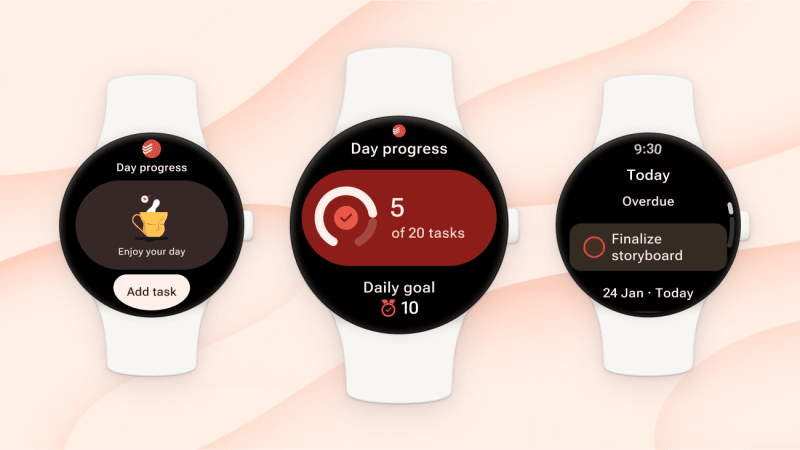
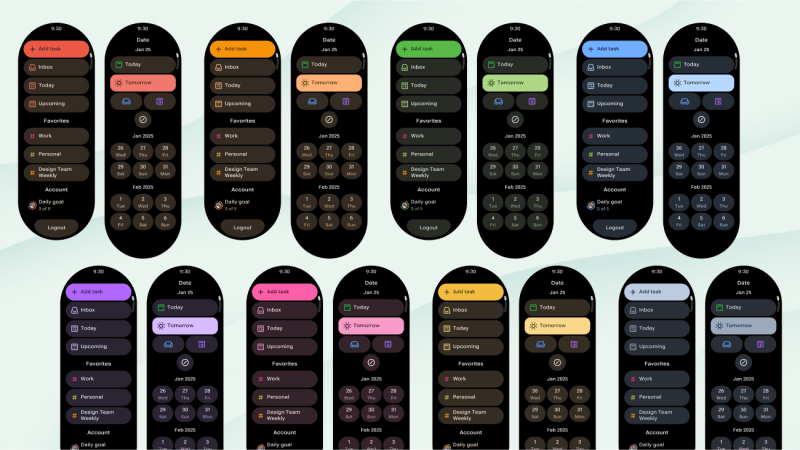
Todoist on Wear OS just got a design refresh that Android users are going to love! Julia, Olga, and Rasto updated our design to match Google’s latest Wear OS guidelines with four key improvements:


- Better glanceability: Information is now organized more clearly, so you can scan your tasks at a glance without squinting at your watch.
- Improved typography: Text is more readable with better sizing and contrast, making it easier to process your task list quickly.
- Refined colors: New vibrant color schemes that work better in different lighting conditions and feel more integrated with Wear OS.
- New edge buttons: “Edge hugging” buttons with a special curved shape designed for the bottom of the screen bring a nice touch to the interface.
The result? Checking off tasks, viewing your list, and staying on top of your day feels more natural and effortless on your wrist. Same powerful functionality, that now looks and feels even better while you’re on the go.
Consejo rápido
New visual interface for recurring tasks 🔄: Jun 30
Remember that monthly expense report? Weekly team check-ins? Your kid’s soccer practice every Tuesday and Thursday? Now there are two ways to set up those repeating tasks in Todoist – giving you the flexibility to work however feels natural.
Two ways to set recurring tasks
Our natural language parsing has always made creating recurring tasks a breeze – just type “every Monday” or “monthly” and you’re done. But sometimes you’re not sure of the exact phrasing or want to explore options visually. That’s where our new recurring scheduler comes in.
How it works
In any task, select Date to open the scheduler, then select Repeat at the bottom. You’ll see quick preset options plus a custom menu for more complex patterns (like “every three weeks on Thursday until Sep 13”).
The new recurring scheduler is available now on all platforms in all 18 supported languages. Whether you’re setting up your weekly grocery run or quarterly team reviews, building consistent routines just got a little easier. ✨
Outlook Calendar integration is here! 📅: Jun 5
You asked (repeatedly! 😉), and now we can finally say: Todoist now integrates seamlessly with Outlook Calendar!
Your tasks and events, finally together
Whether you’re an Outlook devotee or just required to use it at the office, this integration gives you the complete picture: what you need to do alongside when you actually have time to do it. No more accidentally scheduling three hours of deep work when you’ve got back-to-back meetings all afternoon.
Hugo and the calendar team worked relentlessly to make this happen, and it’s available today for all Todoist plans. Here’s Hugo with a quick walkthrough of how it works:







How to set it up:
- Head to Settings > Calendars.
- Click Connect Outlook Calendar and follow the prompts.
- Once connected, your calendar events will appear in Today and Upcoming within seconds.
- Optional: Enable Sync tasks to calendar to see your scheduled Todoist tasks in Outlook too.
Once connected, you’ll see your meetings, appointments, and that dentist visit you keep forgetting about right alongside your tasks in the Today and Upcoming views. And if you’re on a paid plan, the calendar layout becomes even more powerful – you can visualize everything together and actually time-block like a pro.
Time-blocking made simple
Here’s where it gets even better: you can reschedule tasks directly from Outlook Calendar. Drag that “Review Q3 budget” task to a different time slot, and it updates in Todoist automatically. Less app-switching, more getting things done.
For all the details on how the Calendar integration works, check out our comprehensive setup guide.
Nota
Having trouble connecting? If you have a Microsoft 365 Business or Education account, your organization might have restrictions in place. We’ve put together a troubleshooting guide to help with common issues like needing admin approval or calendars not showing up after connecting.
Ready to see your whole day in one place? Connect your calendar and let us know how it’s working for you.
Ordering team projects your way: Apr 16
Team admins: You can now create a custom project order that makes sense for how your team actually works. 🥳
Every team has its own unique rhythm and priorities – the projects you tackle first, the ones you reference most, the ones gathering digital dust in the corner. With the new Manual Sort feature, team admins can arrange projects in an order that mirrors your actual workflow, not just alphabetically.
No more treasure hunting through project lists while your teammates wonder why “Annual Budget” isn’t next to “Monthly Expense Reports.” Just a logical sequence that feels right to everyone on the team. A little order goes a long way when your Monday morning isn’t spent clicking through a long alphabetized project list. 😌
To try it out, team admins can simply open the workspace overview, click Sort, and select “Manual” to start arranging.
- Admins can drag and drop projects and folders into any order that makes sense for your workflow.
- Team members can still choose their view preference: your curated order, A-Z, or Z-A.

Dermot
Customer Experience
Before reorganizing everything, it can be a good idea to check in with your team about what order would help them most. The best structure reflects how your team actually thinks about their work!
Using Todoist with your Team? Let us know what you think of this new option!
Add deadlines to tasks 🎯: Jan 7
For many people, the Date you set for a task is the date you plan to do it. A Deadline, on the other hand, is the date a task needs to be completed by.
A big assignment at school. A report for your boss. Taxes (😱). Deadlines in Todoist let you track a task’s actual deadline separately, so you can schedule out time to start working on it.
Here’s Jon with an intro to this long-requested feature!

How it works
- Deadlines are available on paid plans whether you’re using Todoist solo or with your Team.
- To add a deadline to a new task, click Deadline and select a date. For existing tasks, open the task view and set or edit its deadline. That’s it! That’s the feature. 🌈
- The deadline of a task will be visible wherever you see that task in Todoist: Upcoming, Labels, Today, etc. As a deadline approaches (within 7 days), a countdown will show to give you a subtle reminder that it’s getting closer.
- In the Calendar view, deadlines are highlighted in the All day section so you can’t miss them. Clicking them will take you to the task’s details so you can make sure you’ve planned to tackle it in time. 💪
- When the deadline for an uncompleted task arrives, it will be shown in your Today and Upcoming views so it doesn’t slip through the cracks.
Consejo rápido
If you prefer to add a deadline to a task while you type, use the {} shortcut. For example, {tomorrow} sets a task’s deadline as tomorrow. Learn more about adding task details by typing
When to use deadlines
Like setting the priority of a task, a deadline adds context that helps you plan your time. But they’re not always needed. In fact, the less you use them, the more powerful they become. (Insert mind-blown gif here 🤯)
Here are a few times when adding a deadline to a task is a good fit:
- You’ve agreed with your boss to finish a report by the end of the month (but you’ll start working on it on Monday).
- A task you’re handing-off to a teammate needs to be done by next Friday to keep the project on track.
- You have a major assignment due in three weeks, but will definitely need multiple sessions to crack it. 🧠
Consejo rápido
For now, deadlines work with one-time tasks only. But, based on your feedback, we’re thoughtfully exploring how to also bring them to recurring tasks in a future update.
“When do you need this by?”
No more! 🥳 Adding a deadline to a task before you hand it over to a teammate effortlessly tells them when it needs to be done.
Once your teammate takes over, they can schedule time to work on the task using the Date field. The deadline will stay put, no matter how many times their plans change.
It starts with a task
Want some inspiration on how other Todoist users have met their own deadlines? Take a look at all of the weird and wonderful things they’ve achieved in the last year! Along with the first task that springboarded them to success. 🚀